Virtual Texture Normals - fixed!
Chances are if you’re reading this, you probably want to know how to stop your Virtual Texture normals looking like this:
Okay so that’s more of an interpretation of how it felt trying to get the normals to work; but for an actual example:
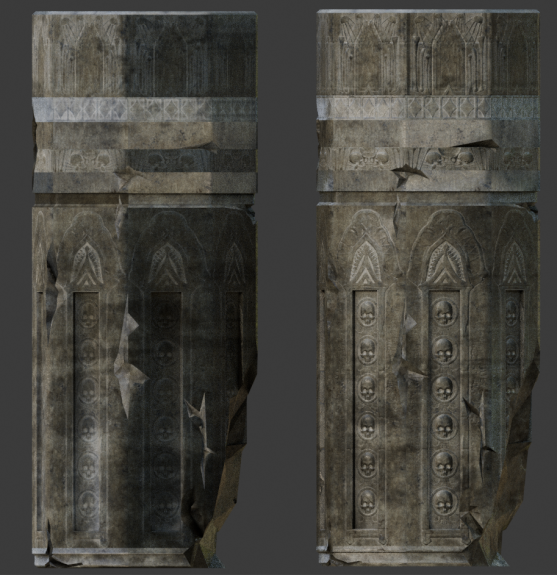
The one on the left uses the standard ‘invert green’ normal setup. The one on the right:
Separate the Color output of the Normal image texture; invert green as usual, connecting it to the Green of a Combine Colour node. Connect the Blue to the Blue. Now connect the Alpha of the Normal image texture to the Red of Combine Color.
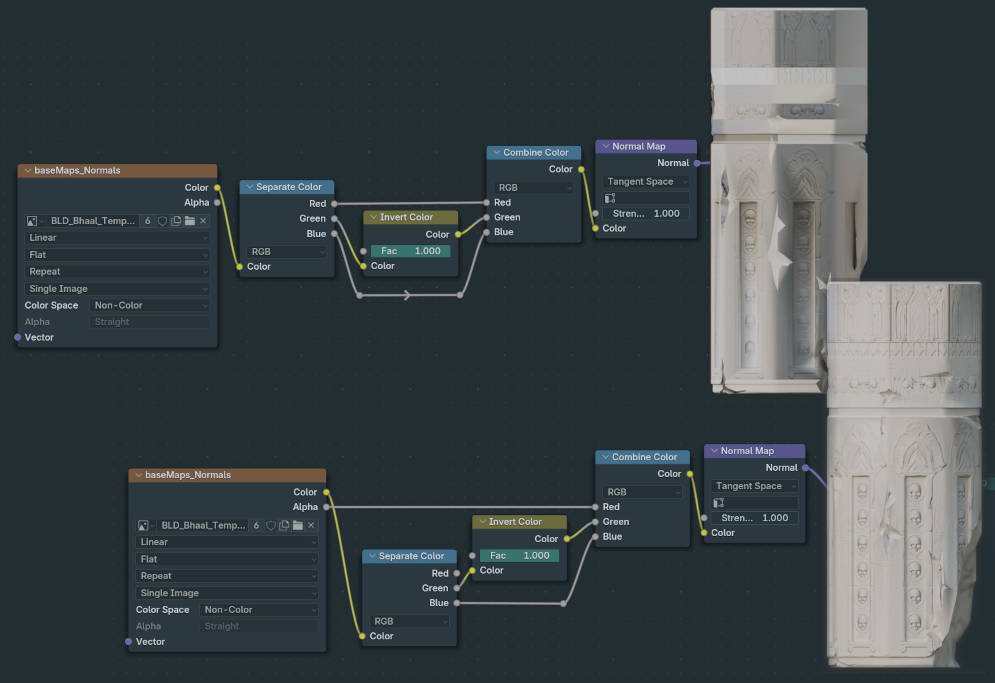
I’ll put a nodegroup up here later on once I’ve figured out the best way to share them; maybe just a .blend once I’ve gotten a nice little hoard of fix-groups like this.
Hope this is helpful to someone out here.
-Harpoon